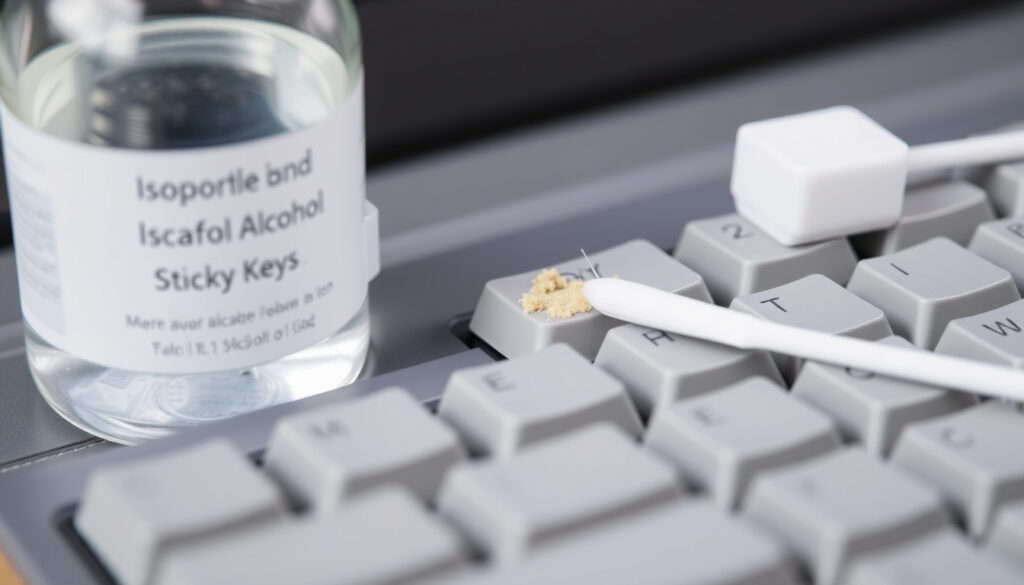
How to Fix Sticky Keyboard Keys: A Complete Cleaning Guide
There’s rarely a more frustrating moment than when a key on your keyboard decides to stick—right in the middle of typing something important. But the fix is usually simpler than you think, and this guide covers the cleaning methods that work, the chemicals to avoid, and why your keyboard’s “Sticky Keys” might not be a hardware problem at all.
Most common cause: spilled liquids or food debris ·
Recommended cleaning agent: isopropyl alcohol (90% or higher) ·
Safe lubricant type: silicone-based or dielectric grease
Quick snapshot
- Use isopropyl alcohol and compressed air (uBreakiFix repair guide)
- Remove key caps if possible (Lenovo support article)
- Allow full drying before reassembly (Lenovo)
- Avoid WD-40 standard formula (uBreakiFix)
- Contact cleaner is a last resort (Cybernet Manufacturing)
- Silicone grease is safe for mechanical switches (Cybernet Manufacturing)
- Disable via Settings or Shift five times (Microsoft support)
- Does not fix physical stickiness (Microsoft)
- Long-term impact of silicone lubricant on keycap stems (Cybernet Manufacturing)
- Effectiveness of contact cleaner on different keyboard types (membrane vs mechanical) (Cybernet Manufacturing)
Five key facts, one pattern: the safest cleaning methods work for almost every keyboard, but the choice of lubricant and the distinction between hardware and software issues often cause confusion.
| Most common cause | Spilled sugary drinks or food particles (Lenovo) |
| Best cleaning agent | Isopropyl alcohol (90% or higher) (uBreakiFix) |
| Safe lubricant for plastic | Silicone-based lubricant (non-conductive) (Cybernet Manufacturing) |
| WD-40 recommendation | Not recommended for keyboards (uBreakiFix) |
| Sticky Keys feature | Accessibility feature in Windows, not hardware (Microsoft) |
How do I fix sticky keyboard keys?
This is the heart of the guide. The process is straightforward when you follow the right steps and use the correct tools. Below, we break it down into four safe, effective stages.
- Power down and disconnect
- Turn off the computer or unplug the keyboard. This is the first safety step (uBreakiFix).
- For laptops, shut down completely and disconnect the battery if possible (Lenovo).
- Remove key caps safely
- Use a keycap puller or a flat tool—never force them (Lenovo).
- On scissor-switch and butterfly-switch keyboards (common in laptops), keycap removal risks snapping the mechanism (uBreakiFix).
If you own a modern thin laptop, think twice before prying off keys. The clips are fragile, and a broken key often means a full keyboard replacement.
- Clean with isopropyl alcohol
- Dampen a microfiber cloth or cotton swab with 90% or higher isopropyl alcohol—never soak the keyboard (uBreakiFix).
- For sticky residue, wipe the keycap and the exposed switch area gently. Avoid dripping liquid into the keyboard (YouTube cleaning guide).
- Dry and reassemble
- Let the keyboard air dry for at least 15–30 minutes (Lenovo).
- Snap the keycaps back into place—if they don’t click firmly, the mechanism may be damaged (Cybernet Manufacturing).
The implication: skipping the drying step or using too much liquid is the fastest way to turn a sticky key into a dead one. Patience pays off.
Can you use WD-40 on a sticky keyboard?
Why WD-40 is not recommended
- Standard WD-40 leaves an oily residue that attracts dust and can make keys stickier over time (uBreakiFix).
- Petroleum-based solvents like WD-40 can degrade plastic keycap stems and rubber membranes (Lenovo).
When contact cleaner might be acceptable
- WD-40 Specialist Contact Cleaner is less oily, but it is flammable and may attack adhesives in membrane keyboards (Cybernet Manufacturing).
- Manufacturers advise against any petroleum-based lubricants for keyboards (Lenovo).
Alternative cleaning solutions
- Isopropyl alcohol (90%+) is the preferred cleaner (uBreakiFix).
- Compressed air works best for loose debris (Lenovo).
- Keyboard cleaning gel can lift dust from crevices (Microsoft Answers).
The pattern: the only substance that belongs inside a keyboard is high-purity alcohol. Everything else—WD-40, household sprays, vinegar—carries risks that outweigh any short-term stickiness fix.
Even contact cleaner can damage a laptop’s membrane layer. If you must use a spray, apply it sparingly to a cloth first, never directly onto the keys.
Is WD-40 contact cleaner safe for laptop keyboards?
Differences between WD-40 and contact cleaner
- WD-40 Multi-Use is a lubricant and solvent; Specialist Contact Cleaner is designed to remove oxidation and grease with minimal residue (Cybernet Manufacturing).
- Both are flammable and should never be used near ignition sources (uBreakiFix).
Risks for laptop keyboards
- Laptop keyboards use low-profile switches that are more prone to liquid intrusion (uBreakiFix).
- Contact cleaner can dissolve adhesives holding the membrane layers together (Cybernet Manufacturing).
- Spraying liquid into a laptop can reach the motherboard or battery (uBreakiFix).
Safer alternatives for laptops
- Compressed air blows out debris without moisture (Lenovo).
- Isopropyl alcohol wipes (70%–90%) can be used on the keycaps; avoid the base (uBreakiFix).
- For deep cleaning, consider professional service (Cybernet Manufacturing).
Why this matters: a laptop keyboard replacement can cost $100–$300. The few minutes saved by using a risky spray aren’t worth the potential repair bill.
What is the best lubricant for keyboard keys?
Silicone-based lubricants
- Silicone lubricant is non-conductive and safe for plastic keycap stems (Cybernet Manufacturing).
- A dry-film silicone spray (e.g., Super Lube Dry Film) is preferred because it leaves minimal residue (Cybernet Manufacturing).
Dielectric grease
- Dielectric grease is commonly used on mechanical keyboard stabilizers to reduce rattle (Cybernet Manufacturing).
- It is non-conductive and safe for plastic, but it should be applied sparingly.
Avoiding over-lubrication
- Too much lubricant attracts dust and can slow key return (Cybernet Manufacturing).
- Graphite powder is not recommended for modern keyboards because it can short circuit contacts (Lenovo).
The trade-off: a tiny drop is all you need. Over-lubricating a keyboard can create a new sticky problem—this time from excess grease rather than dirt.
Will Sticky Keys go away?
Understanding Windows Sticky Keys feature
- Sticky Keys is an accessibility feature in Windows that lets you press modifier keys (Shift, Ctrl, Alt) one at a time (Microsoft support).
- It is activated by pressing the Shift key five times or via Settings.
How to disable Sticky Keys
- Press Shift five times to toggle it off, or go to Settings → Accessibility → Keyboard → toggle off Sticky Keys (Microsoft support).
When keys stick due to software vs hardware
- If keys feel sticky only after pressing Shift repeatedly, it’s likely the software feature—not a physical problem.
- Physical stickiness (from liquid or debris) will not go away by changing settings; it requires cleaning (Lenovo).
- After cleaning, if keys still stick, there may be residue that needs a second pass (Lenovo).
The implication: always test with a software toggle first. If the stickiness disappears when Sticky Keys is off, your hardware is fine. If not, reach for the alcohol.
Confirmed facts
- Isopropyl alcohol evaporates cleanly and is safe for electronic contacts (uBreakiFix)
- Compressed air removes loose debris without liquid damage (Lenovo)
- Sticky Keys accessibility feature can be toggled in Windows Settings (Microsoft support)
- WD-40 standard formula leaves residue and may damage plastics (uBreakiFix)
What’s unclear
- Effectiveness of contact cleaner on different keyboard types (mechanical vs membrane) (Cybernet Manufacturing)
- Long-term impact of silicone lubricant on keycap stems (Cybernet Manufacturing)
- Use of lighter fluid on rubber components – effectiveness and safety (Cybernet Manufacturing)
- Warm soapy water for keycap cleaning (Lenovo) may leave residue if not dried properly
Unplugging or powering off the keyboard or laptop before cleaning is a standard first step in repair guidance. Compressed air and isopropyl alcohol are the primary tools recommended for keyboard cleaning.
— uBreakiFix repair guide (authorized repair provider)
Lenovo says sticky keys can result from dirt, debris, or spilled liquids. They recommend removing a sticky keycap, cleaning it with a cloth dipped in warm soapy water, and letting it dry completely before reattaching it.
— Lenovo support article (PC manufacturer)
Cybernet Manufacturing recommends a dry-film lubricant, specifically Super Lube Dry Film lubricant, applied lightly from four sides at a 45-degree angle into key guide spaces.
— Cybernet Manufacturing (industrial computing manufacturer)
For anyone dealing with sticky keys, the choice is clear: clean properly with isopropyl alcohol, avoid WD-40, and know the difference between software and hardware stickiness. If the key still sticks after a thorough cleaning, it may be time to replace the keyboard—especially for laptop owners whose key mechanisms are too fragile to repair individually.
Frequently asked questions
Can I use a vacuum cleaner to remove debris from my keyboard?
Yes, but use a small brush attachment and keep the vacuum on a low setting to avoid sucking keycaps off. Compressed air is usually preferred (Lenovo).
How often should I clean my keyboard to prevent sticky keys?
Every 3–6 months for most users, or immediately after any spill or crumb accumulation. Regular compressed air maintenance between cleanings helps (uBreakiFix).
What should I do if a key cap breaks during removal?
If the plastic clip snaps, the keyboard likely needs a full replacement for that key. Some laptop keyboards allow single-key replacement, but often the entire top case must be swapped (uBreakiFix).
Is it safe to use a hair dryer to speed up drying after cleaning?
No. Heat can warp plastic keycaps or damage the membrane layer. Allow the keyboard to air-dry for at least 30 minutes (uBreakiFix).
Why do my keys feel sticky even after cleaning?
Residual stickiness often means residue remains under the keycap or inside the switch mechanism. Try repeating the cleaning with a fresh alcohol wipe. If that fails, the switch may be damaged (Lenovo).
Can I clean my keyboard with a wet cloth?
No. Water can cause short circuits and corrosion. Use a cloth dampened with isopropyl alcohol (90%+), not water (Cybernet Manufacturing).
Does the type of keyboard (mechanical vs membrane) affect cleaning method?
Yes. Mechanical keyboards are more forgiving—you can remove keycaps and clean the switches. Membrane keyboards are sealed and require surface cleaning only (Cybernet Manufacturing).
More related posts
 How Many Episodes of The Pitt? Season Count Explained
 Xbox 24 Hour Support Phone Number: Real Hours & Chat
 Is Conan Gray Gay? His Statements on Labels and Sexuality
 Samsung Galaxy M54 to Buy: Price, Specs & Review 2025
 Where to Watch Texans vs. Pittsburgh Steelers 2026: TV & Streaming
 Drive In Near Me: Drive-In Cinemas in Ireland (2025)
 Sixt Rent a Car Review: Ownership, Pricing & Customer Insight
 KPop Demon Hunters Tiger Derpy: Name, Meaning & Cultural Roots